This guide explains how to sync files from a Microsoft SharePoint Site into Windows File Explorer.
1. Log into SharePoint here. Use your MBTS Staff Credentials.
2. In SharePoint, click on the site you wish to sync. If you do not have access to the site, contact your supervisor. Your supervisor will contact the Helpdesk to grant you access.
3. Then, click "Documents" on the left column.
4. Across the top of the Documents window, there is a "Sync" tab. Select  .
.
5. Then, a dialogue box will notify you that SharePoint is syncing your files. You might also receive a pop-up that says, "This site is trying to open Microsoft OneDrive." Press "Open."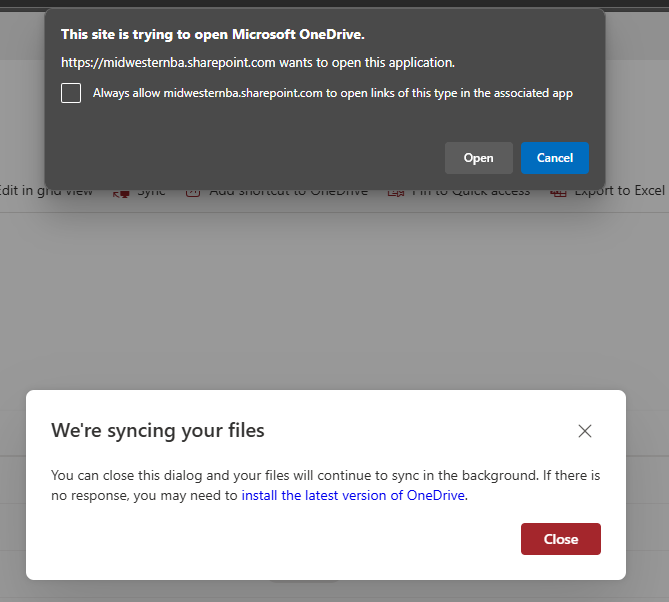
6. When SharePoint finishes syncing, go to your File Explorer. You can find the synced files on the left column inside Midwestern Baptist Theological Seminary  .
.
Note: Depending on the size of the SharePoint you are syncing, this process might take several minutes before the files start to appear.
If you need any further assistance, contact helpdesk@mbts.edu.